Select Mode
Select mode buttons select APEX controls in the viewport when clicked.
This is the default button mode.
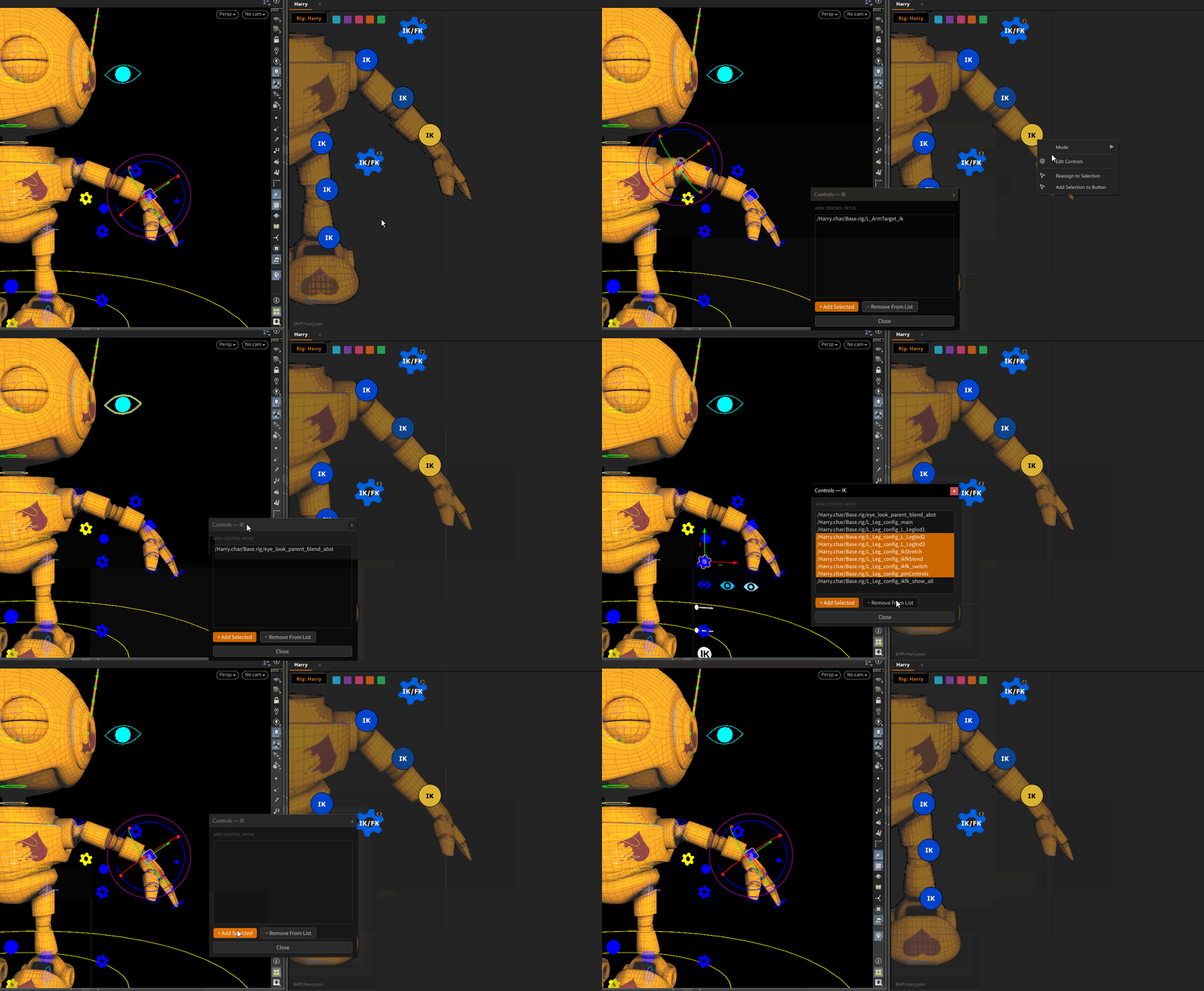
Clicking Buttons
| Action | Result |
|---|---|
| Click | Select the assigned controls (clears previous selection) |
| Shift+click | Add assigned controls to the current selection |
| Ctrl+click | Deselect this button only |
| Alt+click | Select both the assigned controls and their mirrored counterparts |
Mirror matching uses the rig's built-in mirror pattern — the picker swaps left/right counterparts automatically.
Assigning Controls to a Button
Controls are assigned per button via the right-click context menu.
| Option | Result |
|---|---|
| Edit Controls | Opens the Selection Manager dialog — view, add, or remove controls individually |
| Reassign to Selection | Replaces all assigned controls with the current viewport selection |
| Add Selection to Button | Appends the current viewport selection to the existing controls |
Selection Manager
For precise control over what's assigned to a button, right-click → Edit Controls.
The Selection Manager dialog lets you: - View all assigned control paths - Add controls from the current viewport selection - Remove individual controls
Notes
- A button with no controls assigned does nothing when clicked.
- Control paths are full APEX paths, e.g.
/char/Base.rig/L_arm_ctrl. - If the rig is changed in the rig menu, the picker remaps controls to the new rig automatically where controller names match.
← Getting Started · Pose Mode →