Animation Tools
The animation tools bar sits at the bottom of the picker window and provides quick-access buttons for common animation operations on your selected controls.
Toggle it with the  icon in the top-right of the menu bar. Its open/closed state is remembered across sessions.
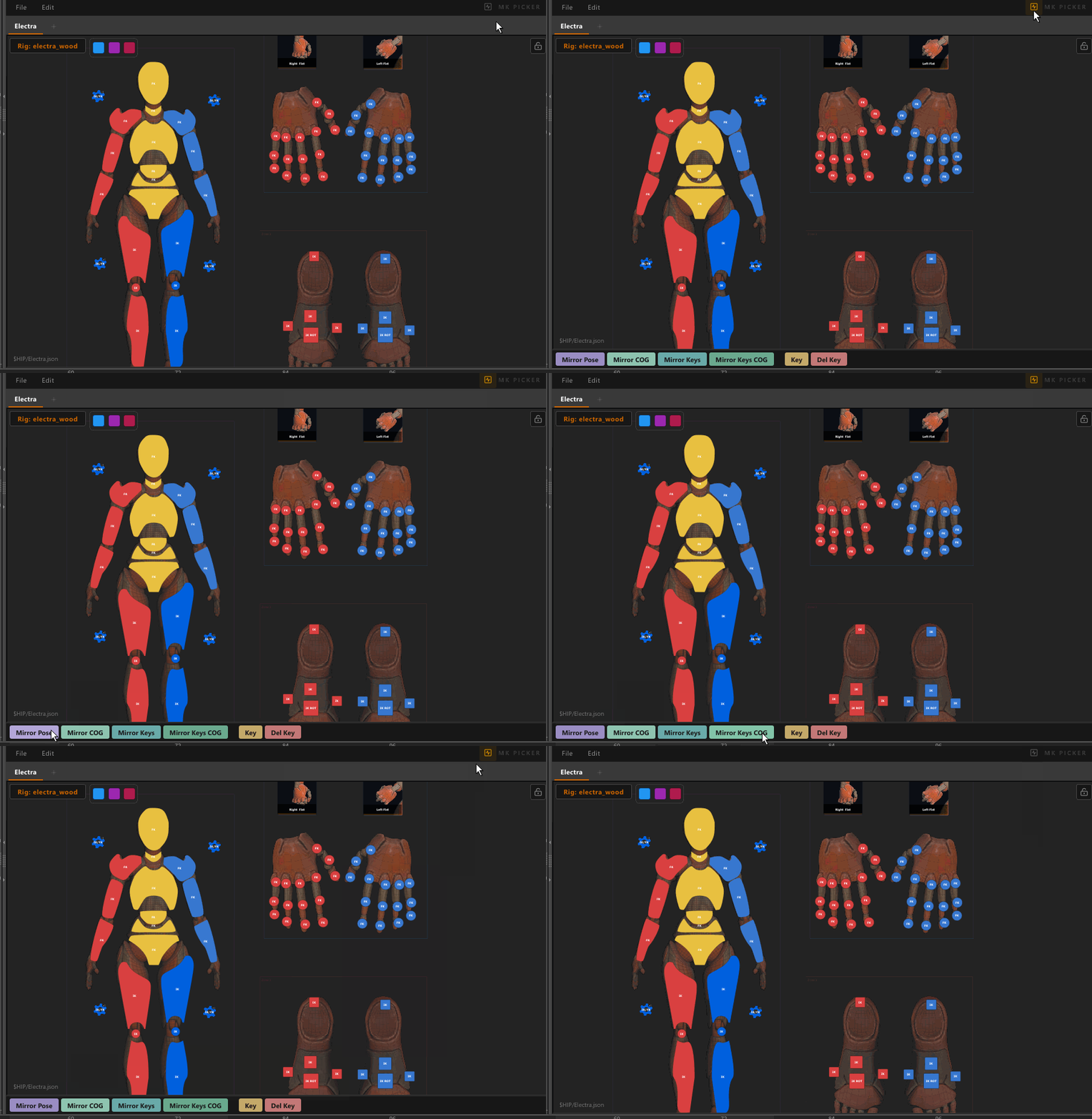
Mirror Pose
Mirrors the current pose of selected controls to their opposite-side counterparts at the current frame.
Uses world-space mirroring — the mirror plane is axis-aligned (no rotation), anchored at the Mirror Root control.
When to use it
Use Mirror Pose when you want to flip a full-body pose across the character's symmetry axis — for example, copying a T-pose, a standing pose, or any pose where the character is roughly upright and facing forward. Because the plane has no rotation, left and right are always defined in world space regardless of where the character is looking.
Typical use
You've posed the left arm and hand. Select those controls and click Mirror Pose — the right arm and hand instantly match.
Mirror COG
Mirrors the current pose of selected controls to their opposite-side counterparts at the current frame.
Uses character-space mirroring — the mirror plane is anchored at the COG control and inherits its rotation. The plane rotates with the character.
When to use it
Use Mirror COG when the character's body is rotated or tilted and you want the mirror to respect that orientation. Because the plane follows the COG, "left" and "right" are always relative to the character's own facing direction, not the world.
Typical use
Your character is turning 45° to the right. You want to mirror the right leg to the left leg so it reads as symmetric relative to the body, not relative to the world. Mirror COG gives the correct result; Mirror Pose would not.
Another use
You've animated an arm swing on one side. The character is leaning forward. Mirror COG copies that arm motion to the opposite side and keeps it relative to the body's tilt — no world-axis drift.
Mirror Pose vs Mirror COG — summary
| Mirror Pose | Mirror COG | |
|---|---|---|
| Mirror plane rotation | Fixed (world-axis-aligned) | Follows COG rotation |
| Best for | Full-body pose flip, upright character | Mirroring relative to body orientation, tilted/turned character |
| Requires setup | Mirror Root | COG control |
Mirror X ⚠️ Experimental
Mirrors the current pose of selected controls, including the COG, when the standard Mirror Pose breaks due to heavy COG rotation.
Why it exists
Houdini's internal mirror code can produce incorrect results when the COG control is significantly rotated — the mirrored pose ends up wrong or flipped in unexpected ways. Mirror X works around this by temporarily zeroing the COG rotation before mirroring, computing the mirrored COG translation manually relative to the Mirror Root, then restoring the correct mirrored rotation afterward.
When to use it
Use Mirror X instead of Mirror Pose when:
- Your character has a heavily rotated COG (leaning, crouching, twisted spine)
- Mirror Pose gives a broken result specifically on the COG control
- Mirror COG is not the right fit because you still want a world-space mirror
Experimental
This is a workaround for a known Houdini APEX limitation. Results should be correct in most cases but may not be perfect on all rigs. If you get unexpected results, try adjusting your Mirror Root or COG control assignments in Edit → Mirror Settings.
Mirror Keys
Mirrors all keyed frames on selected controls to their opposite-side counterparts.
Uses world-space mirroring (same plane as Mirror Pose). If a frame range is selected in the Houdini playbar, only keys within that range are mirrored. Otherwise all keys on the selected controls are processed.
Mirror Keys COG
Mirrors all keyed frames on selected controls to their opposite-side counterparts.
Uses character-space mirroring (same plane as Mirror COG). The COG's rotation is sampled per frame, so if the character rotates over the course of the animation the mirror plane follows correctly at every key.
Key
Sets a keyframe on all selected controls at the current frame.
Equivalent to pressing K in the APEX Animate State, but works from the picker without needing the viewport focused.
Del Key
Deletes keyframes on all selected controls.
- If a frame range is selected in the Houdini playbar, all keys within that range are deleted.
- Otherwise only the key at the current frame is deleted.
Revert
Resets selected controls to their default values.
Mirror Setup
Before using any mirror operation you need to tell the picker which controls define the mirror planes. Do this once per rig via Edit → Mirror Settings.
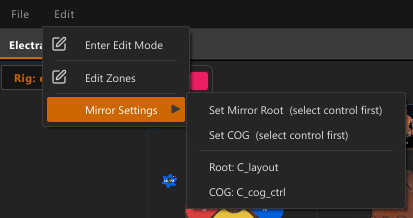
Set Mirror Root
Select a stable, non-sided root control (typically named C_main, C_layout, or similar) and choose Set Mirror Root. This control defines the origin of the world-space mirror plane. Only its translation is used — its rotation is ignored — so the plane is always world-axis-aligned.
Choose a control that never moves or rotates during animation. If the character walks or turns, this control should stay at the world origin.
Set COG
Select the character's center-of-gravity control (typically named C_cog, C_cog_ctrl, or similar) and choose Set COG. This control defines the character-space mirror plane. Both its translation and rotation are used, so the plane tilts and turns with the character.
Tip
If you skip setup, the picker auto-picks a candidate using naming heuristics:
- Mirror Root — prefers controls with
layoutormainin the name - COG — prefers controls with
cogin the name
The current stored controls are shown as greyed-out labels at the bottom of the Mirror Settings submenu.