Import Layout
Two ways to automatically generate a button layout instead of placing buttons manually.
Import from APEX Layout
Creates one button per control in the rig, positioned to match the control's location in 3D space projected onto a 2D plane.
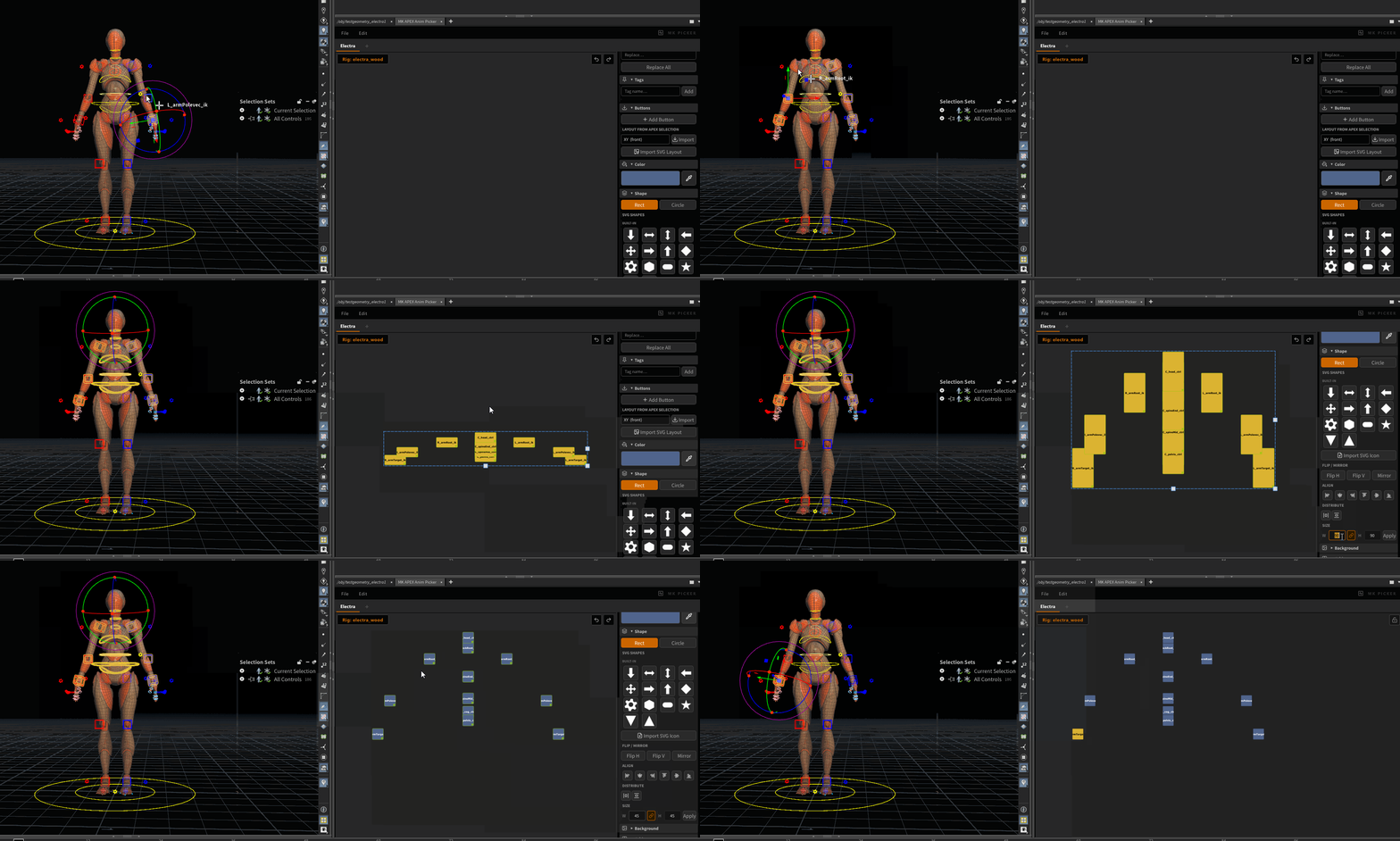
How to use
- In the APEX viewport, select the rig controls you want to import
- In the edit panel → Buttons section, choose a plane: XY, XZ, or YZ
- Click Import
Buttons are created and placed on the canvas, closely matching the spatial layout of the rig.
Plane selection
| Plane | Use when |
|---|---|
| XY | Character faces the camera (front view) |
| XZ | Top-down layout (e.g. foot controls) |
| YZ | Side view layout (e.g hand fingers controls) |
After importing
- Each button is assigned its corresponding control automatically
- Labels are set to the control's short name
- Resize, recolor, and reorganize as needed
Import SVG Layout
Creates buttons from shapes in an SVG file. Useful for building a picker from a character silhouette or custom template.
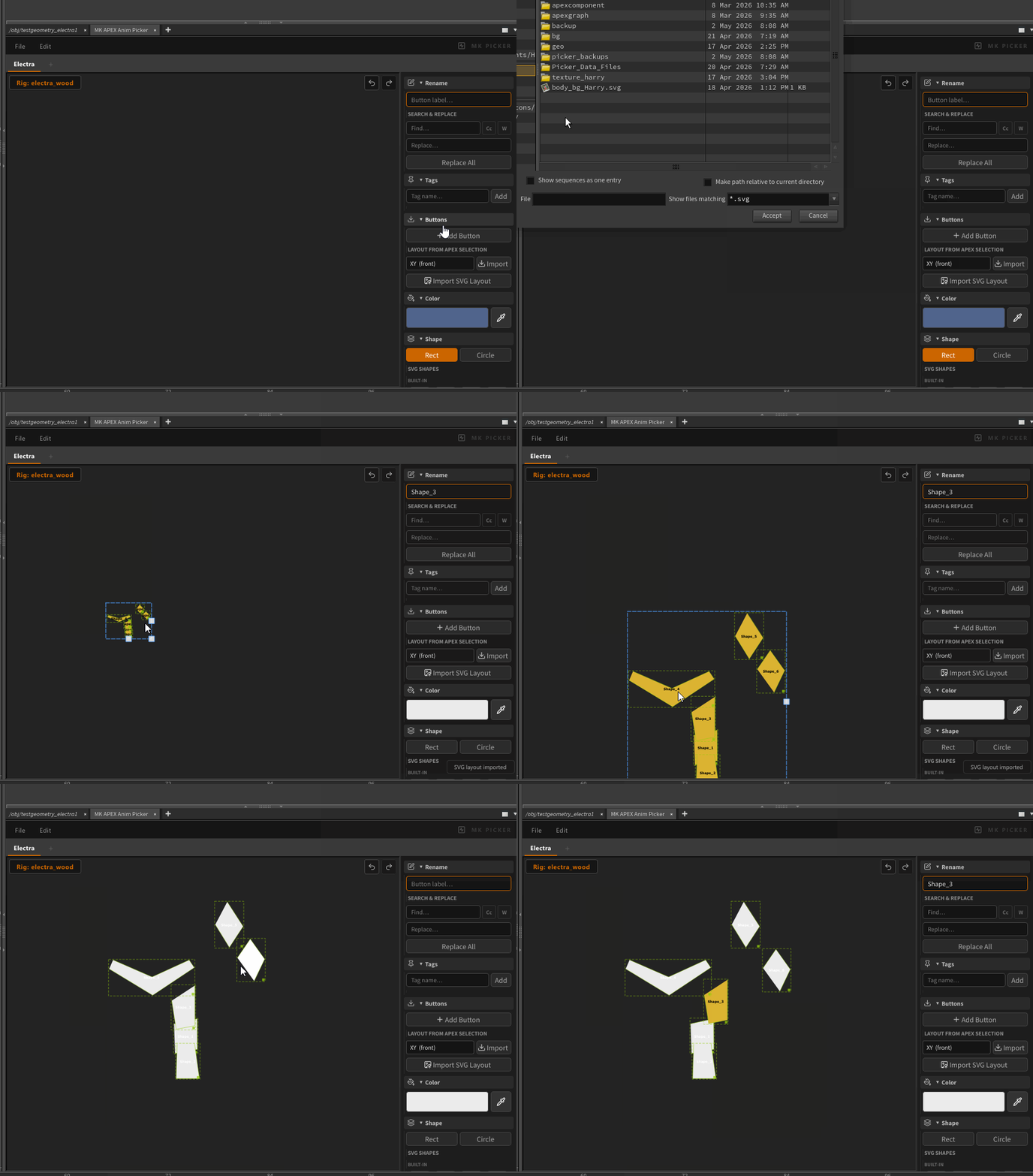
How to use
- Edit panel → Buttons section → Import SVG Layout
- Select an SVG file
Each shape in the SVG becomes a button. Position, size, color, and shape are read from the SVG.
Notes
- Complex paths are supported — the button preserves the SVG path data as its shape
- Grouped shapes are flattened
Import SVG Icon
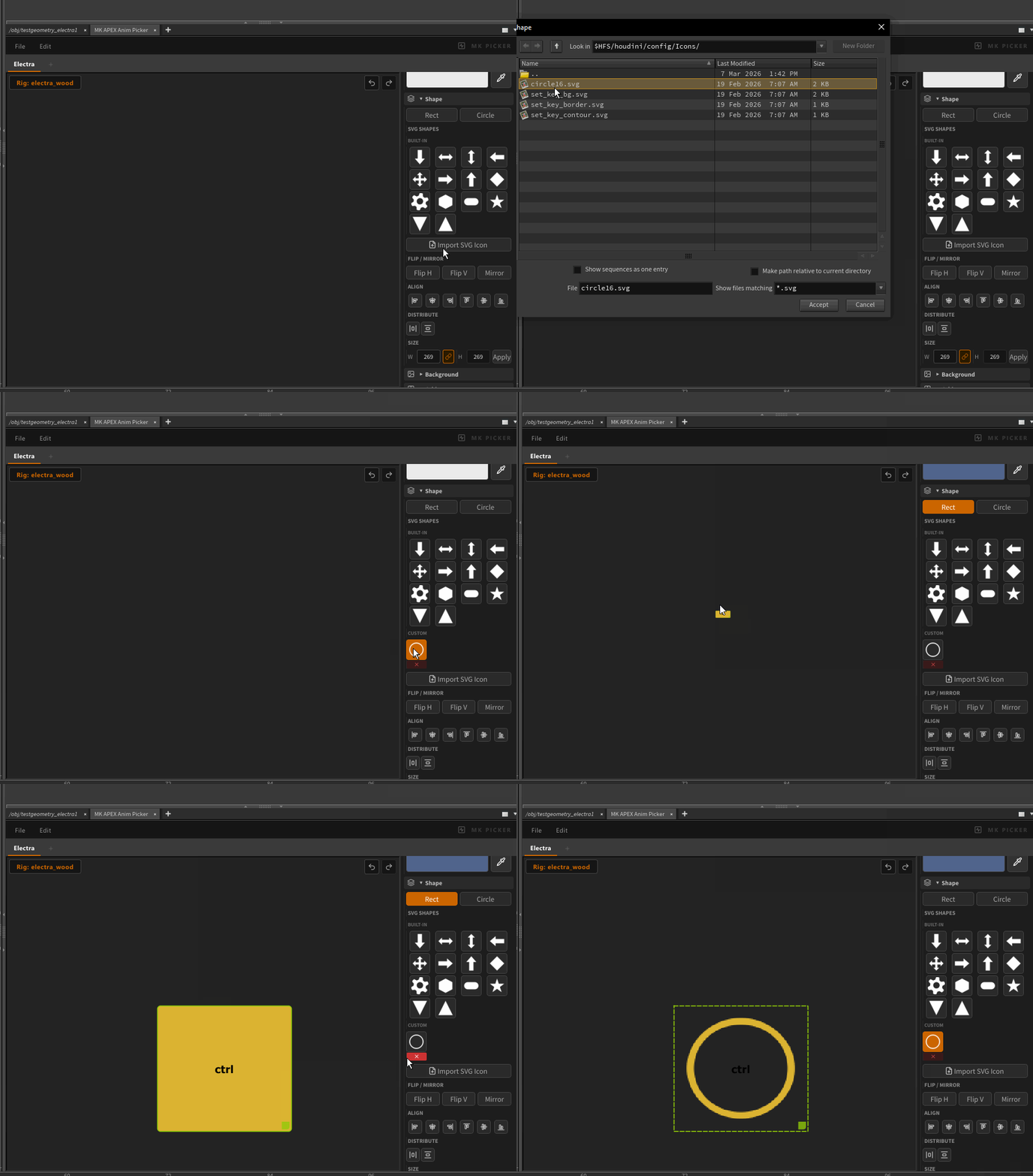
To use a custom SVG as the shape of a single button (not a layout):
Edit panel → Shape section → Import SVG Icon
This sets the visual shape of the selected button to the SVG path. See Button Properties.