Edit Mode
Edit mode lets you build and arrange the picker layout.
Toggle it with the pencil icon in the top-right corner of the panel.
Adding Buttons
Three ways to add buttons:
| Method | How |
|---|---|
| Add Button | Edit panel → Buttons section → Add Button, or right-click empty canvas → Add Button. Places a new button at the center of the canvas. |
| Import from APEX Layout | Reads control positions from the rig and creates a button for each one, arranged spatially. |
| Import SVG Layout | Imports an SVG file and creates buttons from its shapes. |
Selecting Buttons
| Action | Result |
|---|---|
| Click a button | Select it |
| Shift+click | Add to selection |
| Drag on empty canvas | Rubber-band select |
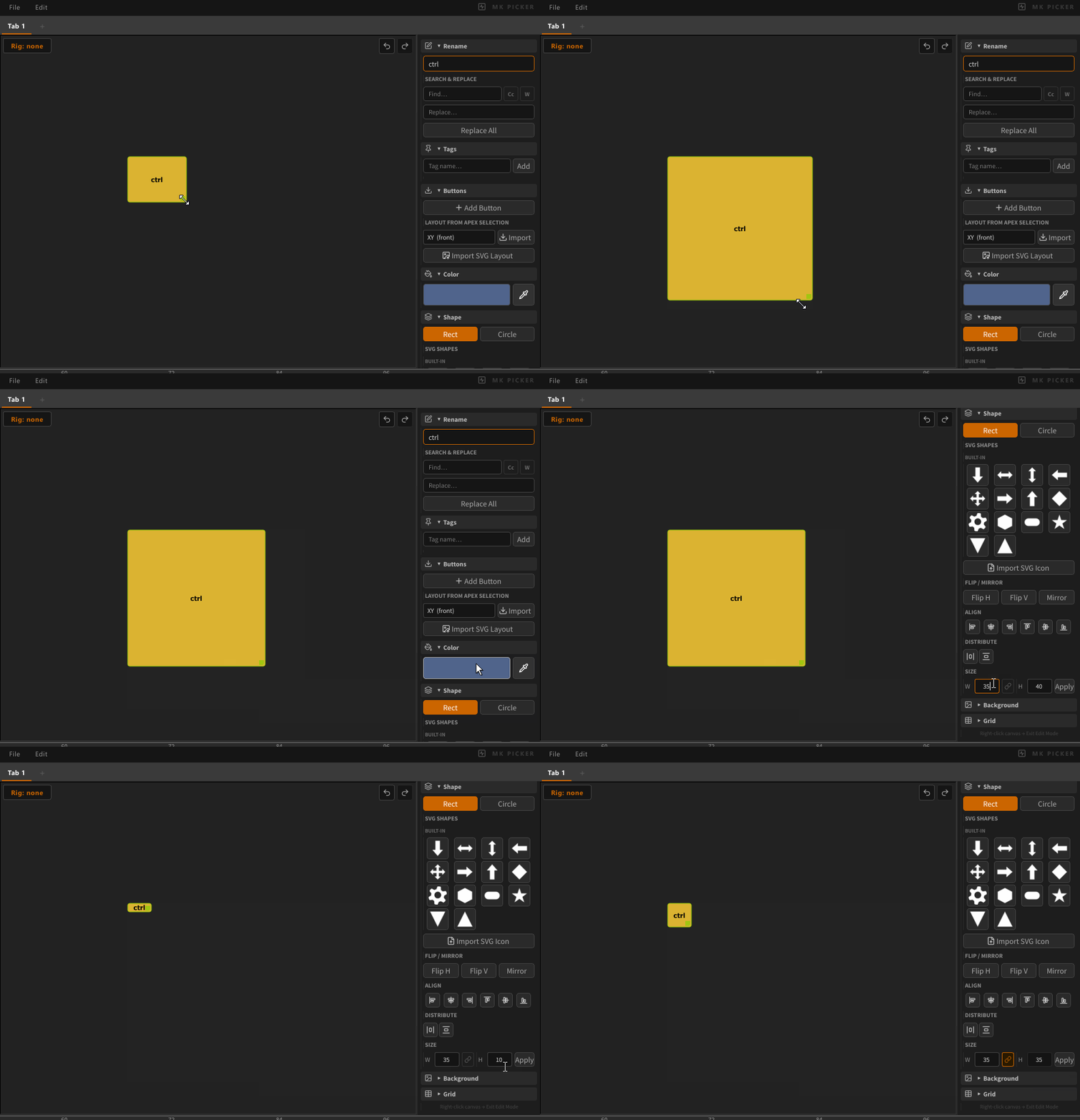
Resizing Buttons
Drag the square handle at the bottom-right corner of a button.
Hold Shift while dragging to resize proportionally.
Enable Lock W=H in the edit panel to always resize proportionally.
Deleting Buttons
Select buttons and press Delete or Backspace.
Copy / Paste
| Action | Shortcut |
|---|---|
| Copy selected buttons | Ctrl+C |
| Paste | Ctrl+V |
Pasted buttons are offset slightly from the originals. All properties are preserved — controls, mode, script, pose data, shape, color, flip.
Undo / Redo
Use the Undo and Redo buttons in the edit toolbar. Only available in edit mode.
Covers: add, delete, move, resize, color, shape, flip, rename.
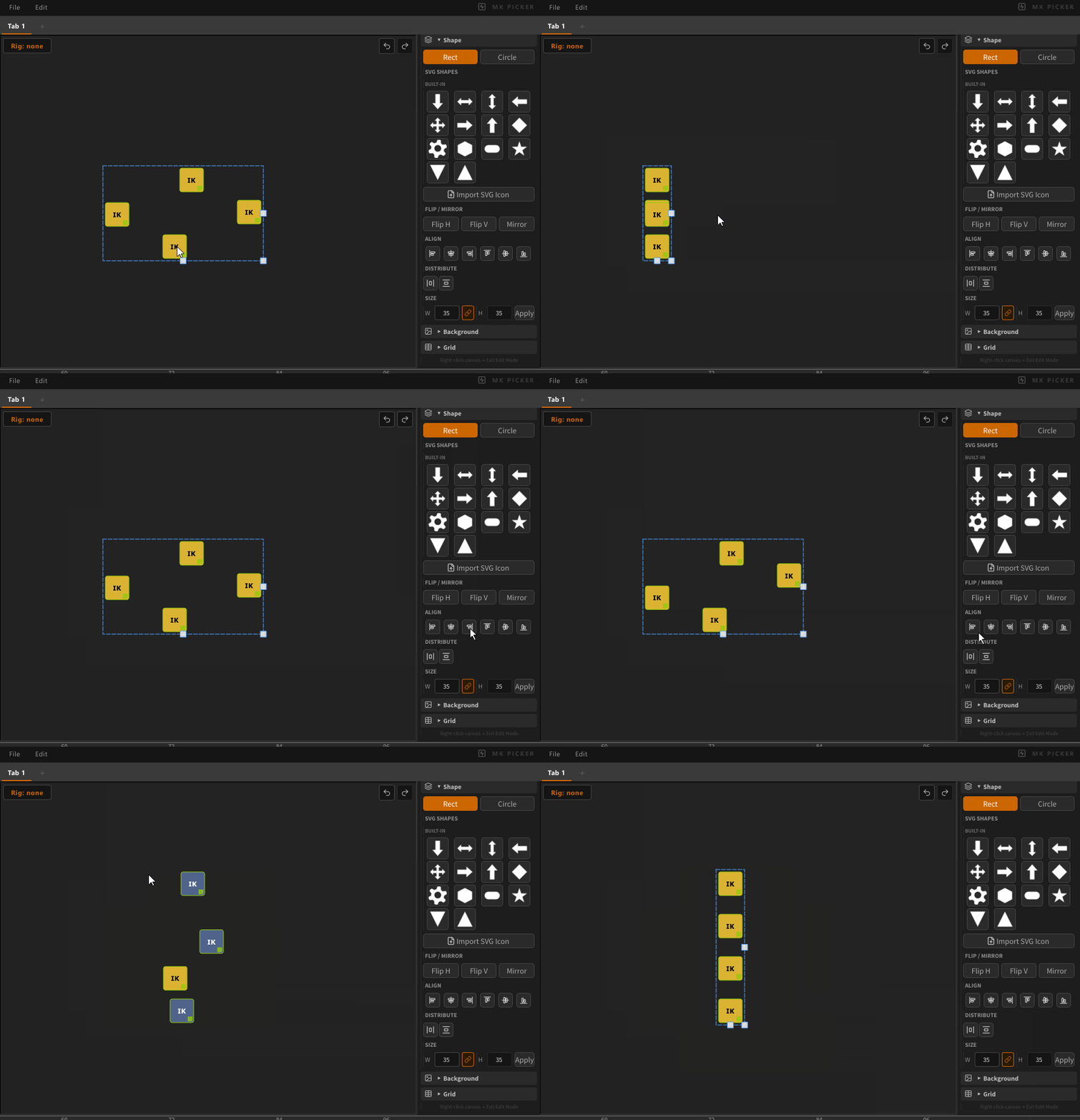
Align & Distribute
With multiple buttons selected, use the alignment tools in the edit panel:
- Align left / center / right / top / middle / bottom
- Distribute horizontally / vertically