Canvas & Background
Background Image
A background image helps orient the picker layout — typically a character silhouette or body diagram.
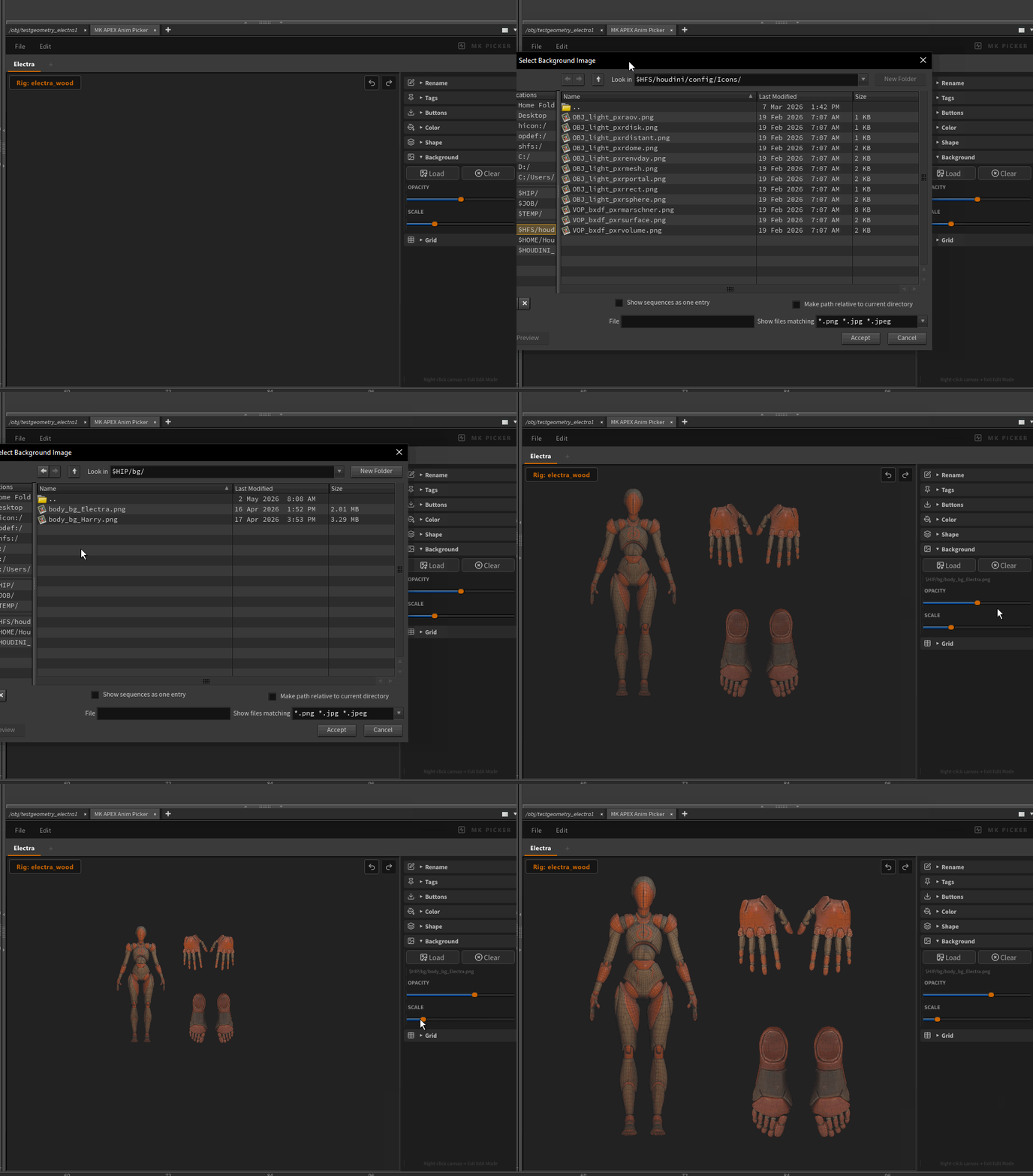
Loading a background
Edit panel → Background section → Load
Supported formats: PNG, JPG.
Controls
| Control | Description |
|---|---|
| Load | Pick an image file |
| Clear | Remove the current background |
| Opacity | Slider — how transparent the image appears (0–100%) |
| Scale | Slider — scale the image relative to the canvas |
The background image is embedded in the picker's JSON file — it travels with the layout.
If the image doesn't show up after loading, you may have saved with a
$HIPpath and opened from a different project.
Grid
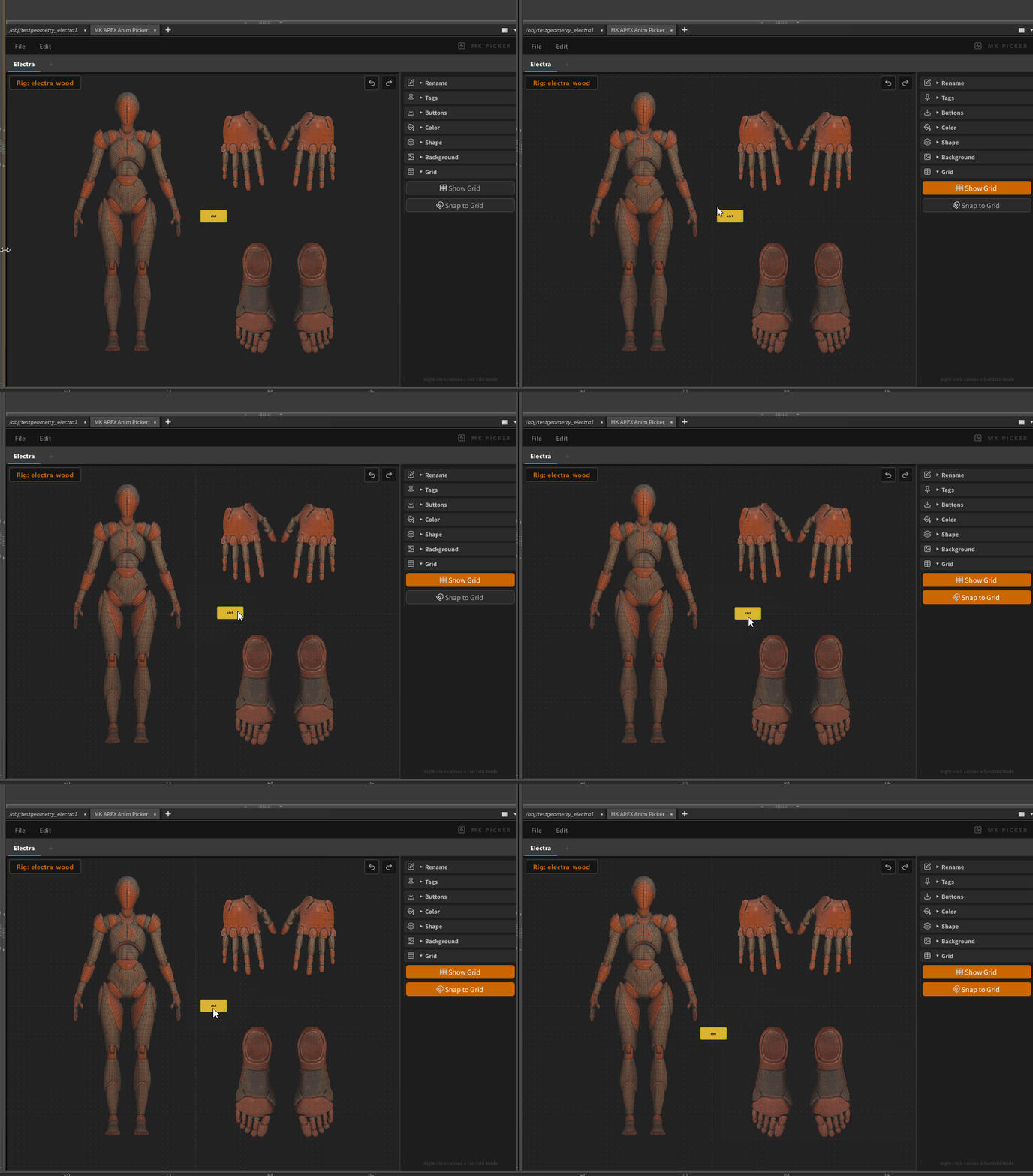
Edit panel → Grid section.
| Option | Description |
|---|---|
| Show Grid | Toggle grid visibility on the canvas |
| Snap to Grid | Snaps button positions to grid intersections when moving |
Canvas Navigation
| Action | How |
|---|---|
| Pan | Middle-mouse drag |
| Zoom | Scroll wheel |
| Fit all buttons | Press H |
| Fit selected buttons | Press G |