Zones
Zones are colored regions drawn behind the buttons to visually group and label areas of the picker canvas.
Up to 12 zones per tab.
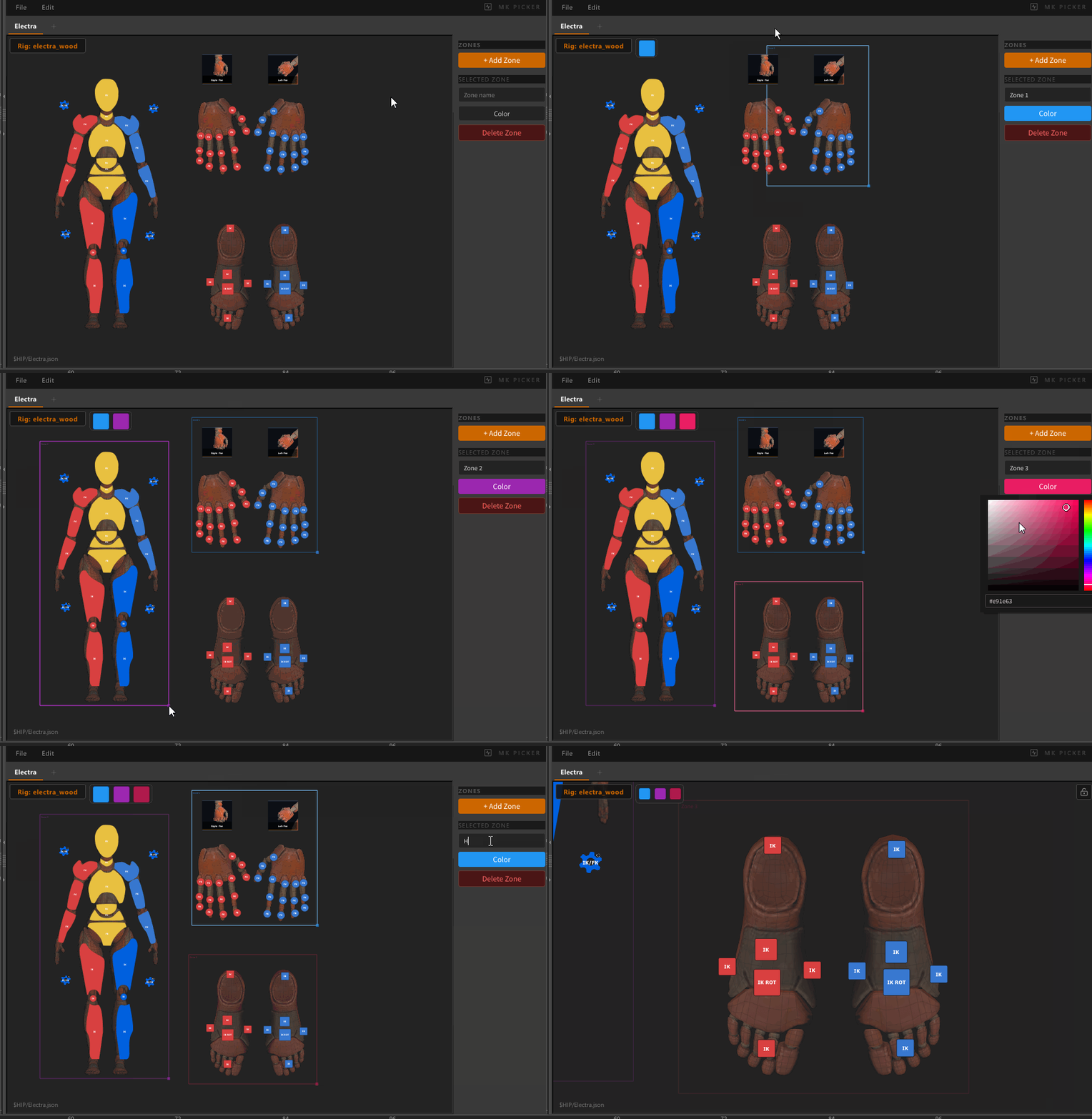
Entering Zone Edit Mode
Right-click the canvas → Edit Zones, or use the context menu when no edit mode is active.
The zone edit panel appears on the right. Button interaction is disabled while zone edit is active.
The lock button hides while in zone edit mode, same as in button edit mode.
Exit zone edit the same way — right-click → Exit Zone Edit.
Creating a Zone
Shift + drag on empty canvas — draw a rectangle to create a new zone.
The zone is assigned a color automatically from the preset palette.
Alternatively, use Add Zone in the zone edit panel to place one at the canvas center.
Selecting a Zone
Click a zone to select it, or click its colored square in the Zone HUD. The zone edit panel updates to show its name and color.
Renaming a Zone
With a zone selected, type a new name in the Name field of the zone edit panel and press Enter.
Recoloring a Zone
With a zone selected, click the color swatch in the zone edit panel to pick a new color.
Moving and Resizing a Zone
Drag the zone body to move it.
Drag a zone edge or corner to resize it.
Deleting a Zone
Select a zone and press Delete or Backspace, or click Delete Zone in the zone edit panel.
Zone HUD
When zones exist, a row of colored squares appears in the top bar — one square per zone.
| Action | Result |
|---|---|
| Click a square | Zoom canvas to that zone (normal mode) / select zone (zone edit mode) |
| Drag a square left/right (zone edit mode) | Reorder zones |
Zones that don't fit in the available space overflow into a ••• menu.
← Saving & Loading · Shortcuts →